Microsoft moved SNDS to a new portal in 2026. Here's how to sign up, what the data actually means, and how it connects to Outlook blacklist issues.
Microsoft SNDS (Smart Network Data Services) is a free tool that shows you how Outlook and Hotmail view the reputation of your sending IPs. It's not a delisting tool, it's a monitoring dashboard.
As of 2026, Microsoft moved SNDS to a new portal, and the older sign-up process referenced in most existing guides is being phased out.
(CTA: "Monitor your IP reputation across 100+ sources, free" links to accounts.konetix.net/sign-up)
A 2026 update most guides haven't caught up to
Microsoft's own SNDS page states plainly that the service has moved to a new portal, replacing the older one that most existing tutorials still walk through. The previous automated-access URLs, the ones many current guides reference, are being retired.
If you've followed an older guide and hit a dead end or a confusing login error, this migration is very likely why. The core process (request access, verify ownership, get dashboard access) is the same in spirit, but the exact steps and starting point have changed.
Monitor Your IP Reputation
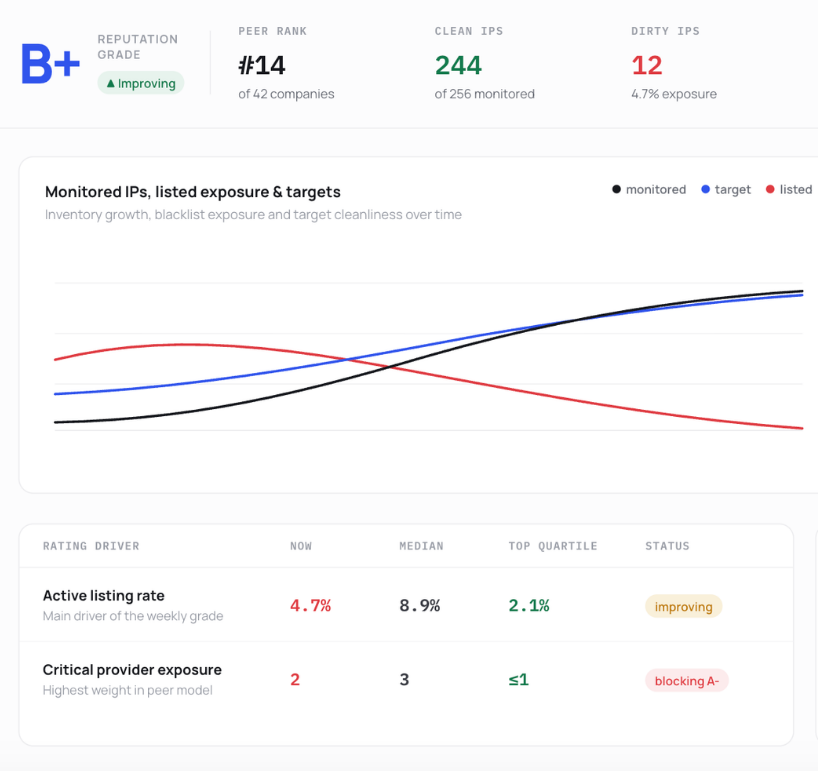
Actively monitor up to a /16 subnet (65, 536 IPs) for free. Receive a comprehensive overview of your IPs’ reputation.
SNDS gives you visibility into how Microsoft's mail systems see your sending IPs, specifically for Outlook.com, Hotmail, and Live.com. It works at the IP level only, not the domain level, so it won't tell you anything about domain-based reputation.
It's important to be clear about what this tool does not do: it doesn't remove you from a blacklist, and it isn't itself a blacklist. It's diagnostic. If your status looks poor, SNDS shows you why, but fixing the underlying cause is still on you.
What data SNDS actually shows you
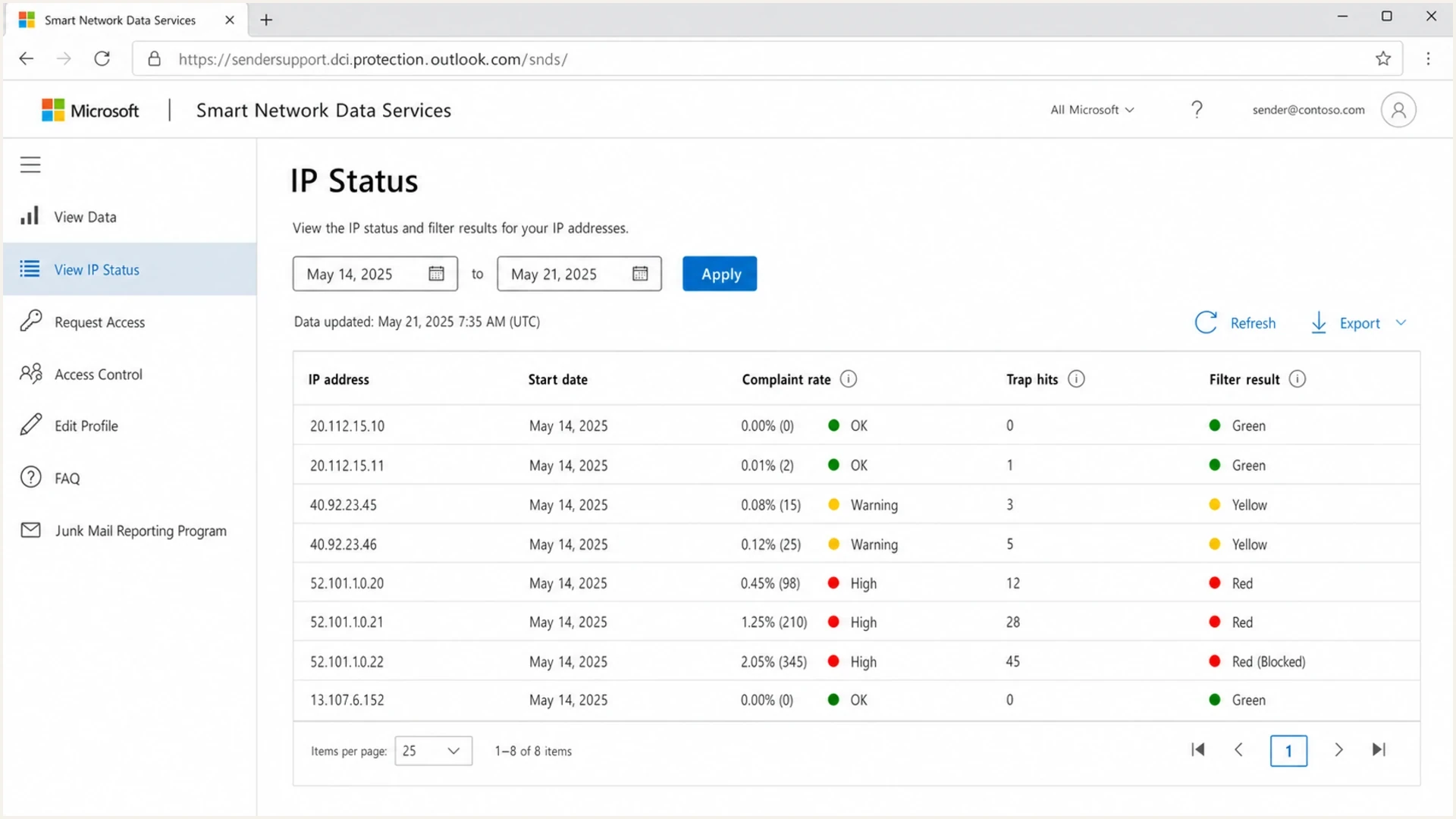
Once you have access, the dashboard and reports typically include:
IP reputation status, generally shown as a simple good, neutral, or poor style rating for how Microsoft currently views each IP
Spam trap hits, if your sending has reached known trap addresses
Complaint data, through the built-in Junk Email Reporting Program, which tells you when recipients mark your mail as junk
Bounce rate, tracking how much of your mail to Microsoft addresses is being rejected
Sending volume, how much mail Microsoft is seeing from each IP
Message filtering results, giving some insight into why specific messages were filtered or blocked
How to sign up and get access
Go to the current SNDS portal rather than an older bookmarked link, since the previous URL is being phased out. A quick search for "Microsoft SNDS portal" will get you to the live version if you don't already have it saved.
Sign in with a Microsoft account. You'll need an Outlook.com, Hotmail, or Microsoft 365 account to log in, this doesn't have to be the account you send mail from, just one you can access.
Request access for your IP or IP range. You'll enter the specific IPs or a range you're responsible for.
Verify ownership through your abuse contact. Microsoft looks up the authoritative contact address associated with your IP range, typically pulled from WHOIS or abuse/postmaster records, and sends a verification message there.
This is why having a valid, monitored abuse contact registered on your IPs matters, if that inbox doesn't exist or isn't checked, you won't receive the verification.
Confirm through the email you receive. Click the link in the verification message to complete registration.
Log in to your new SNDS dashboard. From here you can view your IP data directly, and optionally enable automated access if you want to pull this data programmatically instead of checking manually.
How this connects to Outlook blacklist issues
If you're seeing bounces or filtering specifically to Outlook or Hotmail addresses, SNDS is usually the right first stop, since it shows you Microsoft's own view of your reputation directly, rather than guessing from bounce messages alone.
A poor SNDS status is often the real explanation behind Outlook-specific delivery problems, even when a general blacklist check comes back clean. See our Outlook delisting guide if you're dealing with outright rejections rather than just reputation monitoring.
What to do if your status looks poor
SNDS shows you the problem, it doesn't fix it. If your reputation status is weak or you're seeing spam trap hits or high complaint rates, the fix is the same fundamentals that apply everywhere else: clean your sending list, make sure authentication (SPF, DKIM, DMARC) is properly configured, and reduce volume temporarily while you address the root cause.
Keep checking SNDS periodically afterward, since improvement here tends to happen gradually rather than all at once.
What changed in the new SNDS portal
Microsoft migrated SNDS to a new portal, substrate.office.com/ip-domain-management-snds/SNDS, on June 8, 2026. If you've been following an older guide and hit a dead end, a confusing login error, or a broken automated link, this migration is very likely why. A few specific things changed alongside the move:
Automated access URLs changed. The old URLs, beginning with sendersupport.olc.protection.outlook.com/snds/, were deprecated on June 22, 2026. If a script or monitoring job still calls one of those URLs, don't assume a blank result means your reputation data disappeared, go verify the replacement automated link inside the new portal instead.
Automated links now expire after 30 days. Previously these didn't expire. If a data feed that used to work suddenly stops, an expired link is a likely first thing to check.
Trap-hit counts are being removed from the Data Report as of July 22, 2026. Microsoft describes this as part of protecting the integrity of its anti-abuse systems, exact trap hit numbers won't be shown going forward. During the transition period specifically, reported values may already differ from historical numbers and shouldn't be read as exact counts. If trap-hit history matters for your own internal tracking, it's worth saving what you can before this fully takes effect.
JMRP complaint reports are now header-only. Microsoft has stripped the message body from Junk Email Reporting Program complaint feedback, you'll still see that a complaint happened, but not the full original message content.
Network ownership delegations now expire and must be revalidated periodically, rather than lasting indefinitely. If you manage IP ranges on behalf of customers or former clients, it's worth checking that your access hasn't quietly lapsed.
A REST API with OAuth 2.0 is now available for teams that want structured, automated access to their data rather than relying solely on the dashboard.
None of this changes what SNDS fundamentally does, it still shows IP status, complaints, and volume, but several of these changes quietly break automation built around the old system. Worth treating this as something to actively check on, not a one-time update to read past.
Frequently Asked Questions
Is Microsoft SNDS a blacklist?
No. It's a monitoring and reporting tool that shows you your reputation with Microsoft's mail systems. It doesn't block or list anyone itself.
Why did the SNDS sign-up process I followed stop working?
Microsoft moved SNDS to a new portal in 2026, and the older URLs and sign-up flow referenced in many existing guides are being retired. If an older process isn't working, this migration is the likely reason.
Do I need SNDS if I already use a general blacklist checker?
They serve different purposes. A general blacklist checker tells you if you're listed somewhere. SNDS tells you specifically how Microsoft views your reputation, including data a general checker won't show, like complaint rates and spam trap hits specific to Outlook and Hotmail.
Does SNDS cover domains as well as IPs?
No. SNDS is IP-specific. It doesn't provide insight into domain-level reputation.
What do I need before signing up?
A Microsoft account to log in with, the specific IP or IP range you want to monitor, and a valid, monitored abuse contact address registered on that IP range, since that's where Microsoft sends the verification message.