How to fix an Outlook or Microsoft 365 blacklist issue, starting with identifying your exact error code, since the right removal path depends entirely on which one you have.
Quick answer: There's no single Outlook blacklist with one removal form. Which process applies to you depends on the exact bounce message (NDR) you're seeing. Some errors point to a specific IP block with its own delist portal, others go through a different email-based process, and some bounces aren't a blacklist issue at all, they're a reputation problem that needs a different fix entirely.
(CTA: "Check your IP across 100+ blacklists, free" links to accounts.konetix.net/sign-up)
Step 1: Find your exact NDR error code first
This is the step that determines everything else, don't skip it. Look at the actual bounce message your mail server received.
If you see "550 5.7.606-649 Access denied, banned sending IP [x.x.x.x]": this means your specific sending IP has been blocked. Use the Office 365 Anti-Spam IP Delist Portal at sender.office.com.
If you see "550 5.7.511 Access denied, banned sender[xxx.xxx.xxx.xxx]": this uses a different process. Forward the full NDR, including the error code and IP address, to delist@microsoft.com.
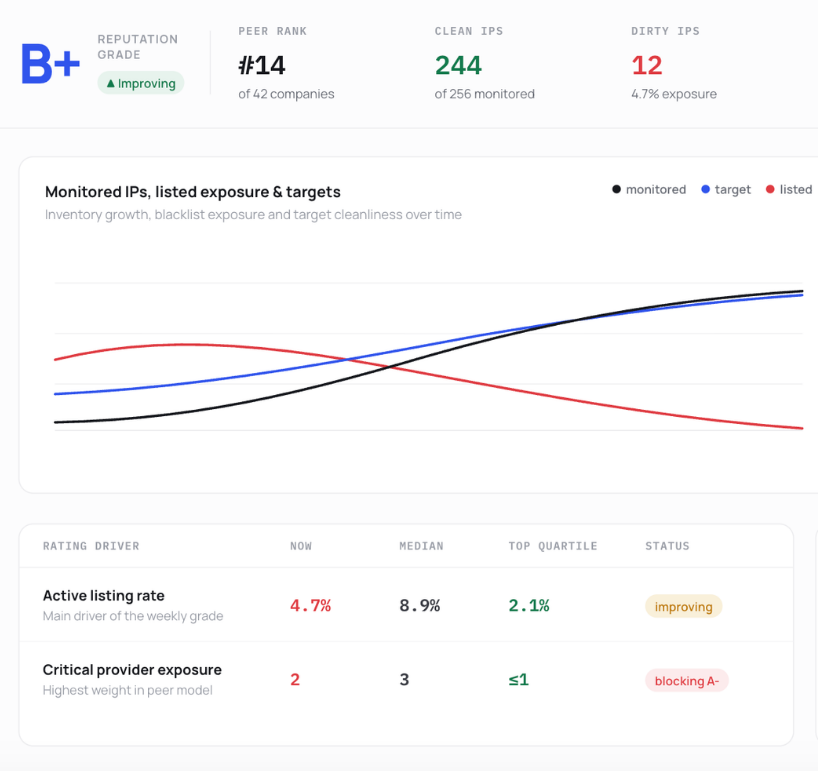
If your mail is being accepted but landing in spam, with no bounce or error code at all: this isn't a blacklist issue. It's a reputation problem, and the fix is different. Check Microsoft SNDS to see how Microsoft actually views your IP's reputation, since a general blacklist checker won't show you this, it only checks public DNSBLs, not Microsoft's internal reputation system.
Monitor Your IP Reputation
Actively monitor up to a /16 subnet (65, 536 IPs) for free. Receive a comprehensive overview of your IPs’ reputation.
Microsoft reviews the request and typically responds within 48 hours with next steps.
Why IPs get blocked by Outlook
Microsoft's filtering is reputation-driven at its core. The most common causes:
Low sender reputation. This is built from engagement signals, opens, replies, mail being marked important, or mail getting manually pulled out of spam. Low engagement over time drags reputation down, even without an obvious single trigger.
High complaint rates. If recipients mark your mail as junk frequently, that's tracked and weighed heavily.
Bounce rates. Sending to invalid or stale addresses regularly signals poor list hygiene.
Misconfigured DNS or missing authentication. Missing or broken SPF, DKIM, or DMARC records, or sending unauthenticated mail from a dynamic IP, are treated as risk signals.
A common mistake worth avoiding
Switching to a new sending domain to escape a block doesn't work, and can make things worse. Microsoft tracks sending patterns across domains, not just the domain name itself, so a fresh domain with the same underlying sending behavior tends to inherit the same problems quickly.
How long removal actually takes
For the 5.7.511 process specifically, Microsoft's own guidance states requests are typically reviewed within 48 hours. For automated IP delist requests through the sender.office.com portal, processing is often much faster when the request is accepted without further review, though Microsoft doesn't publish a fixed guarantee, so treat any specific number you see elsewhere as a general expectation, not a promise.
Getting the block itself removed is not the same as full reputation recovery. Even after delisting, expect a period of gradual improvement, generally a few weeks of clean, consistent, low-volume sending, before your reputation with Microsoft fully stabilizes.
Frequently Asked Questions
Why isn't there just one Outlook blacklist removal form?
Because Microsoft's filtering system responds differently depending on why mail was blocked. A hard IP block, a banned-sender flag, and a general reputation problem are three different situations, each with its own resolution path.
My mail isn't bouncing, it's just landing in spam. Is that the Outlook blacklist?
No. A bounce with an error code means a block. Mail that's delivered but filtered to spam with no error code is a reputation issue instead, and Microsoft SNDS is the right tool to investigate that, not a delist form.
Can I speed up the 48-hour review?
Not through any official channel. Submitting duplicate requests doesn't help and can slow things down further.
Will switching domains help me avoid a block?
No. Microsoft's filtering tracks sending patterns, not just the domain itself, so the same underlying issue tends to follow you to a new domain quickly.
How do I know if I'm dealing with a public blacklist or Microsoft's internal reputation system?
A public blacklist checker only shows DNSBL listings like Spamhaus or Barracuda, not Microsoft's own view of your reputation. If you're clean on public lists but still having Outlook-specific trouble, check SNDS directly.